
You wake up, unplug your device at 100 percent, and head out the door. Within an hour, you notice the percentage has plummeted, leaving you anxious about finding a charger. Dealing with a phone battery draining so fast is a frustrating experience that many users face daily.
Common culprits include background applications, high screen brightness, weak cellular signals, or outdated software. Sometimes, location services and natural hardware aging also play a role in this rapid power loss. Do not panic, as you likely do not need a new device yet.
You can often fix phone battery drain by adjusting specific settings, improving maintenance routines, and adopting better charging habits. This guide explores effective techniques to restore your device’s longevity and performance.
Key Takeaways
- Identify common software and hardware triggers for power loss.
- Learn how background apps impact your daily energy usage.
- Discover simple settings adjustments to extend daily runtime.
- Understand when to optimize connectivity for better efficiency.
- Explore maintenance habits that preserve long-term health.
Why Is My Phone Battery Draining So Fast?
Many users wonder why phone battery loses power quickly, often overlooking the complex mix of background processes at play. It is rarely the result of a single culprit; instead, it is usually a combination of several power-intensive tasks running at the same time. Understanding these common causes of battery drain is the first step toward reclaiming your device’s performance.
How Background Activity Uses Power Even When You Are Not Using Your Phone
Your smartphone is constantly working behind the scenes to keep your data fresh. Apps often refresh content, check for updates, or sync information without you ever opening them. This background activity consumes significant energy throughout the day, even when the screen is off.
Why Bright Displays and High Refresh Rates Reduce Battery Life
The screen is typically the largest consumer of power on any mobile device. High brightness levels force the backlight to work harder, which depletes your charge much faster. Additionally, high refresh rates—like 90Hz or 120Hz—make scrolling look smooth but require the processor and display to update more frequently, leading to increased energy consumption.
How Weak Cellular Signals Force a Phone to Work Harder
When you are in an area with poor reception, your phone does not just sit idle. It constantly scans for a stronger connection to maintain your link to the network. This constant searching drains the battery significantly faster than when you have a full signal.
When Location Services, Bluetooth, and Syncing Become Battery Drains
Features like GPS, Bluetooth, and automatic cloud syncing are incredibly convenient but come at a cost. Constant location tracking requires the phone to determine and update your location repeatedly. Similarly, keeping Bluetooth active for accessories or allowing apps to sync data in real-time creates a steady drain on your power reserves.
How Heat, Software Problems, and Battery Age Affect Drain
External factors like extreme heat can cause your battery to discharge faster than normal. Software bugs or outdated operating systems may also cause processes to hang, which keeps the processor running at high capacity. Finally, as your battery ages, its chemical capacity naturally declines, which is a major reason why phone battery loses power quickly over time.
Check Which Apps and Features Are Using the Most Battery
Identifying the culprits behind your battery drain starts with a simple look at your phone’s usage data. You do not have to guess why your power levels are dropping when your device keeps a detailed log of every app’s activity. To effectively check battery usage, you must navigate to the settings menu where your phone tracks power consumption over time.
Step 1: Review Battery Usage on Android and iPhone
Understanding how to access these reports is essential for troubleshooting. Whether you are using a modern battery usage Android and iPhone interface, the steps are straightforward and provide clear insights into your daily habits.
Find Battery Usage on Samsung Galaxy and Google Pixel Phones
On most Android devices, open your Settings app and tap on Battery or Device Care. From there, select Battery Usage to view a list of apps ranked by their power consumption. This list shows you exactly which programs have been working the hardest since your last full charge.
Find Battery Usage on an iPhone
For iPhone users, navigate to Settings and tap on Battery. You will see a detailed breakdown of your battery level over the last 24 hours or the last 10 days. This view helps you spot patterns in your usage that might be contributing to a faster drain than expected.
Interpret Foreground, Background, Screen, and Cellular Activity
Your phone categorizes power usage into specific groups to help you understand where the energy goes. Foreground activity refers to apps you are actively using, while background activity tracks processes running while the app is closed. Screen usage and cellular activity are also major factors, as high brightness or a weak signal forces your phone to work much harder than usual.
“Knowledge is the first step toward solving any technical problem, especially when it comes to managing your device’s limited resources.”
Look for Suspicious Apps, Recent Changes, and Abnormal Spikes
Once you review the data, look for apps that consume a disproportionate amount of power compared to how often you use them. If you notice a sudden spike in battery drain, consider if you recently installed a new app or updated your software. Identifying these anomalies allows you to take targeted action, such as uninstalling a problematic app or adjusting specific settings to stop the drain.
Improve Battery Life by Adjusting the Screen
Your phone’s display is often the biggest culprit behind rapid battery drain. Because the screen remains active for hours each day, even small adjustments can lead to significant power savings. By fine-tuning how your device handles light and motion, you can keep your phone running much longer.
Step 2: Reduce Screen Brightness and Turn On Adaptive Brightness
High brightness levels force your screen to consume massive amounts of energy. To reduce screen brightness, you should aim for the lowest comfortable level for your current environment. Enabling adaptive brightness allows your phone to automatically adjust based on ambient light, ensuring you never use more power than necessary.
Adjust Brightness on Android Phones
On most Android devices, swipe down from the top of your screen to access the quick settings panel. You can drag the brightness slider to the left to lower the intensity. For automatic adjustments, navigate to Settings, tap Display, and toggle on Adaptive Brightness.
Adjust Brightness and Auto-Brightness on an iPhone
Open the Control Center by swiping down from the top-right corner and move the brightness slider down. To enable auto-brightness, go to Settings, select Accessibility, tap Display & Text Size, and ensure Auto-Brightness is turned on.
Step 3: Shorten Screen Timeout and Disable Always-On Display When Unnecessary
A screen that stays on long after you stop using it wastes precious energy. Shortening your screen timeout ensures the display turns off quickly when idle. Additionally, while the Always-On Display is convenient, it keeps a portion of your screen active 24/7, which drains the battery over time.
Change Screen Timeout on Samsung Galaxy and Google Pixel Phones
Go to Settings and select Display. Look for Screen Timeout or Sleep settings to choose a shorter duration, such as 30 seconds or one minute. This simple change prevents your phone from wasting power while sitting on a desk.
Change Auto-Lock and Always-On Display Settings on an iPhone
For Auto-Lock, navigate to Settings, tap Display & Brightness, and select a shorter time interval. If you have a newer iPhone with an Always-On Display, you can disable it by going to Settings, Display & Brightness, and toggling off the Always-On Display feature.
Step 4: Lower the Display Refresh Rate When Battery Life Matters More Than Smooth Scrolling
A high screen refresh rate battery life impact is often overlooked by users. While 120Hz makes scrolling look incredibly smooth, it requires the processor and display to work much harder. Switching to a standard rate can provide a noticeable boost to your daily endurance.
Switch Samsung Galaxy and Google Pixel Displays to Standard or Adaptive Modes
Navigate to your Display settings and look for Motion Smoothness or Refresh Rate options. Select Standard (60Hz) instead of Adaptive or High to conserve energy. This is particularly helpful when you are away from a charger for long periods.
Use Low Power Mode on ProMotion iPhones When Appropriate
iPhones with ProMotion automatically adjust their refresh rate, but you can force them to be more efficient. Enabling Low Power Mode in your battery settings will reduce the refresh rate on supported ProMotion models. This is a highly effective way to extend your battery life during busy days.
Step 5: Use Dark Mode and Limit Battery-Heavy Live Wallpapers
Using dark mode battery saving features is a smart strategy for modern smartphones. Live wallpapers, while visually appealing, require constant processing power and animation, which keeps your GPU active. Switching to a static, dark-themed background is much easier on your battery.
Explain Why Dark Mode Helps More on OLED Screens Than LCD Screens
Dark mode is most effective on OLED screens because each pixel produces its own light. When a pixel displays black, it can turn off completely, saving energy. On LCD screens, a backlight is always on, so the power savings from dark mode are minimal compared to OLED technology.
| Setting | Battery Impact | Recommended Action |
|---|---|---|
| Brightness | High | Use Adaptive Brightness |
| Refresh Rate | Medium-High | Switch to 60Hz |
| Screen Timeout | Medium | Set to 30 Seconds |
| Dark Mode | Low-Medium | Enable for OLED |
Reduce Battery Drain from Apps, Notifications, and Location Services
You can significantly extend your battery life by taking control of how apps and services behave in the background. Many applications continue to run processes even when your screen is off, which leads to unnecessary power consumption. By adjusting these settings, you ensure your phone focuses energy only on what you truly need.
Step 6: Restrict Background App Activity for Power-Hungry Apps
Managing background app activity is essential for maintaining a healthy charge throughout the day. When too many apps refresh data simultaneously, your processor stays active, draining your battery quickly.
Use Background App Refresh Controls on an iPhone
On your iPhone, navigate to Settings, then General, and select Background App Refresh. You can toggle this feature off entirely or choose to disable it for specific apps that do not require constant updates. Prioritizing only the most essential apps will save a noticeable amount of power.
Use Android Battery Optimization and Background Usage Controls
Android users should head to Settings and look for Battery or Apps. Most devices offer a “Battery Optimization” or “Background Usage Limits” menu. Setting power-hungry apps to “Restricted” mode prevents them from waking up your phone unnecessarily.
Step 7: Limit Location Access to While Using the App
Constant GPS tracking is a leading cause of location services battery drain. Many apps request your location even when they are not actively open, which can increase power consumption.
Review Location Permissions for Maps, Weather, Delivery, and Social Apps
Go to your Privacy or Location settings to see which apps have constant access. Change these permissions to “While Using the App” for services like maps, weather, or food delivery. This simple change ensures your phone only tracks you when you are actively interacting with the service.
Disable Precise Location When an Approximate Location Is Enough
For many apps, such as weather or local news, you do not need to provide your exact coordinates. Disabling “Precise Location” allows these apps to function with a general area.
Step 8: Reduce Unnecessary Push Notifications, Widgets, and Automatic Syncing
High push notifications battery usage often stems from apps that wake your screen repeatedly. Every time a notification arrives, your display lights up and your phone processes data, which adds up over several hours.
Remove Unneeded Home Screen Widgets and Lock Screen Updates
Widgets that constantly update, such as live stock tickers or weather maps, consume power in the background. Removing these from your home screen can prevent your phone from fetching data every few minutes.
Change Email Fetch, Cloud Sync, and Social Media Notification Settings
Switch your email accounts from “Push” to “Fetch” mode to control how often your phone checks for new messages. Additionally, limiting social media notifications to only the most important alerts will reduce unnecessary daily power drain.
Step 9: Turn Off Bluetooth, NFC, and Nearby Sharing When You Do Not Need Them
While modern technology is efficient, Bluetooth battery drain can still occur if your device is constantly scanning for new connections. Keeping these radios active when they are not in use is a common habit that can waste energy.
Manage Bluetooth Accessories, AirDrop, Quick Share, and NFC Payments
If you are not using wireless headphones or smartwatches, toggle Bluetooth off in your quick settings menu. Similarly, disable features like AirDrop, Quick Share, or NFC when you are not actively transferring files or making contactless payments.
Explain When Leaving Bluetooth On Has Little Impact and When It Can Matter
Leaving Bluetooth on generally has little impact if you are connected to a single, stable device like a smartwatch. However, it can matter during high-drain periods when your phone is constantly searching for new signals in a crowded area.
Fix Battery Drain Caused by Network Problems and Software
Network connectivity and outdated software are often the hidden culprits behind a dying battery. When your device struggles to maintain a stable connection or runs on legacy code, it can consume significantly more energy than necessary. Taking control of these technical factors can lead to immediate improvements in your daily usage.
Step 10: Use Wi-Fi Instead of Weak Cellular Data When Possible
Your phone is designed to constantly search for the strongest signal available. When you are in an area with poor coverage, the device may increase its transmission activity, which leads to weak cellular signal battery drain. Connecting to a stable Wi-Fi network can reduce cellular radio activity.
Recognize Poor-Signal Battery Drain in Battery Statistics
Check your battery usage menu to see if “Cell Standby” or “Network” is consuming a high percentage of your power. If these items appear at the top of your list while you are in a low-service area, your phone may be working harder to stay connected.
If you are in a location with zero service, such as a basement or a remote area, toggle on Airplane Mode. This action stops cellular radio activity. You can still enable Wi-Fi while in this mode to stay connected without cellular network searching.
Step 11: Install Pending Operating System and App Updates
Developers frequently release Android and iOS updates to fix bugs and improve performance. Keeping your software current ensures that your device runs as efficiently as possible. Always download these updates from your official system settings or app store.
Update Android, iOS, and Apps From Official Settings or App Stores
Check your settings menu regularly for pending system updates. Additionally, visit your app store to ensure all installed applications are running their latest versions. Outdated apps can contain inefficient code that increases background activity.
Allow Time for Post-Update Indexing and Background Setup to Finish
It is normal to notice a slight increase in battery drain immediately after a major update. Your phone may re-index files and optimize background processes to integrate the new software. Give your device several hours or even a full day to settle into its new configuration.
“Technology is best when it brings people together and simplifies our lives, not when it drains our energy.”
Step 12: Restart the Phone and Reset Network Settings When Drain Appears Suddenly
Sometimes, a simple reboot is all it takes to clear out stuck processes that are consuming excessive CPU resources. If your battery life drops suddenly, a fresh start can stop rogue background tasks. Restarting your phone is a useful troubleshooting step for unexpected behavior.
Restart Android Phones and iPhones Safely
For most modern smartphones, use the device’s power menu to restart. The exact button combination varies by model. Allow the device to shut down and restart completely before testing battery performance again.
Understand What Resetting Network Settings Removes
If connectivity issues persist, resetting your network settings can clear corrupted configurations. Be aware that this action will remove saved Wi-Fi passwords, Bluetooth pairings, and VPN settings. It is a powerful tool, but use it only when standard troubleshooting fails.
Step 13: Turn On Battery Saver or Low Power Mode During High-Drain Periods
When you are running low on power and cannot reach a charger, these built-in tools are useful. Using battery saver mode or Low Power Mode iPhone options can extend your remaining usage by limiting certain background and performance activities.
Use Battery Saver on Android Phones
Android devices offer battery saver features that can restrict background activity and reduce certain visual effects. You can usually find this in your quick settings panel or within the battery menu.
Use Low Power Mode on an iPhone
On an iPhone, Low Power Mode reduces or disables certain background activities and visual effects. You will see your battery icon turn yellow when this feature is active.
Explain Which Features May Be Delayed or Limited
While these modes are helpful, they do limit certain functions. You may notice that some background updates are delayed, or that certain visual effects are reduced. These trade-offs are temporary and are designed to keep your phone functional when every percentage point counts.
Protect Battery Health and Manage Charging Habits
Protecting your battery health is one of the most effective ways to prevent sudden power loss. By adopting better daily habits, you can extend the lifespan of your device significantly. Small changes in how you charge and store your phone make a difference in long-term performance.
Step 14: Keep the Phone Cool and Use Battery Health Features
Heat is a major factor in lithium-ion battery degradation. When your device gets too hot, the battery can experience increased chemical stress, which may accelerate long-term capacity loss.
Avoid Gaming, Video Recording, or Navigation While Charging in Hot Conditions
You should avoid running demanding apps while your phone is plugged in, especially in warm environments. Gaming, high-resolution video recording, and GPS navigation generate significant internal heat. When you combine this with the heat produced during charging, temperatures can rise considerably. It is best to let your phone charge in a cool, well-ventilated area.
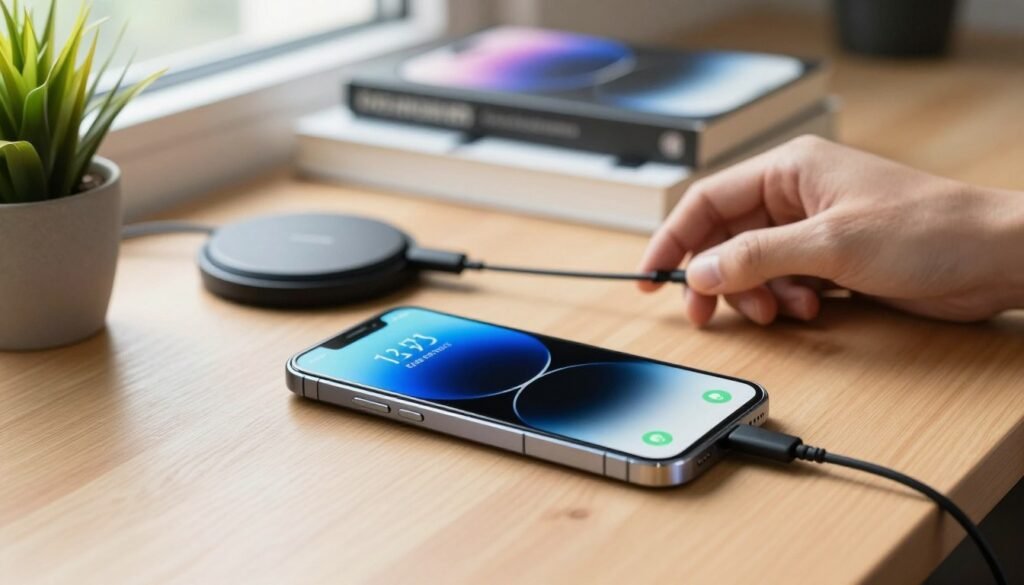
Use Optimized or Adaptive Charging on iPhone, Samsung Galaxy, and Google Pixel Phones
Modern smartphones include smart features designed to preserve battery lifespan. Apple offers Optimized Battery Charging, while Samsung Galaxy and Google Pixel devices offer charging optimization features on supported models.
These tools can reduce the amount of time the battery spends at a very high charge level. Enabling these settings is a simple way to utilize optimized charging for better long-term results.
Step 15: Check Battery Health and Decide Whether Replacement Is Needed
Sometimes, even with the best care, a battery reaches the end of its useful life. Knowing when to seek a phone battery replacement can save you from constant frustration.
Check Maximum Capacity on an iPhone
iPhone users can view battery status by navigating to Settings, then Battery, and selecting Battery Health & Charging. A significantly reduced Maximum Capacity can explain why your phone struggles to hold a charge throughout the day.
Review Battery Diagnostics on Samsung Galaxy and Google Pixel Phones
Android users can check battery information through built-in diagnostic features or manufacturer apps. These tools can provide information about battery condition and performance. If the software indicates that the battery is degraded, consider professional repair.
Explain Why an Older Battery May Drain Quickly Even After Every Setting Is Optimized
Batteries are consumable components that lose their ability to hold a charge as they age. Even if you have adjusted every setting to save power, a physically worn-out battery cannot store as much energy as it did when new. When your phone dies rapidly despite your best efforts, a phone battery replacement may be the most effective permanent solution.
Use Battery-Saving Habits That Work Throughout the Day
Small adjustments to your phone settings can lead to significant improvements in your daily battery life. Instead of relying on a single fix, you should aim to combine several minor tweaks to see the best results. By integrating these daily battery-saving habits into your routine, you can keep your device running smoothly without constant anxiety about your power levels.
Combine Display, Connectivity, and Background-App Changes for the Biggest Results
The most effective way to save power is to address multiple areas at once. When you lower your screen brightness, turn off unnecessary Bluetooth connections, and restrict background data, the cumulative effect can be greater than changing just one setting. Think of it as a team effort where every small action contributes to a longer-lasting charge.
Prepare Before Travel, Long Commutes, or Outdoor Activities
Managing battery drain while traveling requires a bit of foresight before you head out the door. If you know you will be away from a power source, try downloading your music, maps, or videos while you are still on Wi-Fi. This reduces the need to repeatedly download large files over cellular data.
Carry a Certified Charger or Power Bank Without Exposing the Phone to Excess Heat
Always keep a reliable, certified charger or a high-quality power bank in your bag for emergencies. Using cheap or uncertified accessories can create safety and charging problems. Furthermore, be mindful of where you place your phone while it charges; avoid leaving it in direct sunlight or inside a hot car, as extreme heat can accelerate battery degradation.
Track Battery Performance for Several Days After Making Changes
It is tempting to judge your battery life based on a single day, but performance can fluctuate based on your usage patterns. Instead, track your battery behavior over the course of several days to see if your new habits are making a real difference. Consistency is key when evaluating whether your adjustments have successfully extended your device’s runtime.
Know When Fast Drain Requires Professional Repair
Recognizing when your device has moved beyond simple software tweaks is a vital skill for any smartphone owner. While many power issues stem from background apps or screen settings, there are moments when the hardware itself is the culprit.
Signs the Battery May Need Replacement
Identifying the common signs of a bad battery can save you from unexpected frustration. When your phone no longer holds a charge like it used to, it is often a signal that the battery’s capacity has degraded significantly.
Battery Health Below the Recommended Service Level
Many modern smartphones include battery health information in their settings. On supported devices, a significantly reduced health reading or a service recommendation is a reason to consider professional battery replacement.
Unexpected Shutdowns, Rapid Percentage Drops, or Severe Performance Throttling
If your phone suddenly powers off at 20% or jumps from 50% to 10% in minutes, the battery may be failing. Performance throttling can also occur when a device limits performance to manage power or thermal conditions.
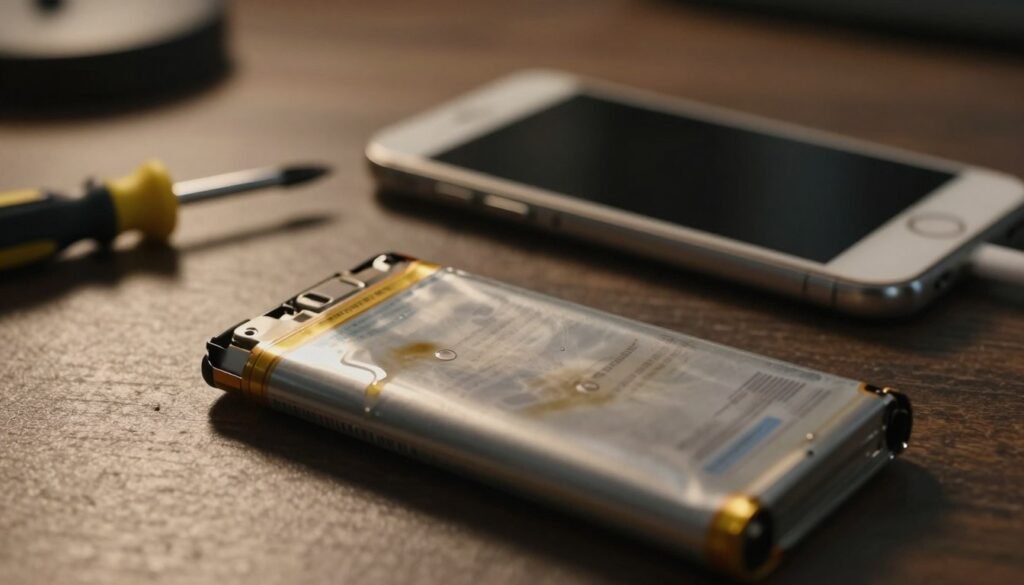
Warning Signs of a Swollen, Damaged, or Overheating Battery
A swollen phone battery is a serious safety concern that requires immediate action. This happens when gas builds up inside the battery cell, causing it to expand and push against the internal components of your device.
Stop Using a Phone With a Bulging Screen or Back Cover
If you notice your screen lifting or the back cover bulging, stop using the device immediately. Continuing to charge or power a phone in this condition can be dangerous and may lead to fire or further hardware damage.
Do Not Puncture, Freeze, or Attempt to Remove a Swollen Battery
Never try to force the casing back into place or puncture the battery. You should also avoid placing the phone in a freezer. Instead, keep the device away from heat and have it handled by an authorized or qualified service provider.
When a Factory Reset Is Worth Considering and What to Back Up First
If your battery health is high but you still experience mysterious drain, a factory reset for battery drain can be considered as a last-resort software troubleshooting step. This process clears user data and system configurations, so it should not be the first solution.
Before you proceed, ensure you have a complete backup of your data. Save your photos, contacts, and important documents to a cloud service or an external drive. Remember, a factory reset will erase everything on your phone, so verify your backup is secure before starting the process.
How to Tell Whether the Battery Drain Is Fixed
Determining whether your battery drain issues are truly resolved requires a systematic approach to monitoring your device. Rather than relying on a single percentage reading, you should look for consistent patterns in your daily usage. By tracking specific metrics, you can gain a clearer picture of your phone’s actual performance.
Compare Screen-On Time Before and After Changes
The most reliable way to measure improvement is by checking your screen-on time. This metric tells you how long your display has been active. If you notice this number increasing after applying your fixes while your usage remains similar, you are likely seeing an improvement.
Do not be fooled by a high battery percentage at a single moment in time. Instead, compare your average daily usage over several days. Consistency is key when evaluating whether your adjustments have successfully extended your device’s runtime.
Check Whether Background Usage and Overnight Drain Have Improved
Another useful indicator is the amount of overnight battery drain your phone experiences while you sleep. If your device previously lost a large percentage while idle and now loses considerably less, that suggests background activity has been reduced.
“True battery optimization is not about disabling every feature, but about finding the right balance for your specific lifestyle.”
You should also review your battery usage menu to see if specific apps are still consuming excessive power in the background. When these apps show lower usage, it confirms that your restrictions may be reducing unnecessary power consumption.
Restore Only Necessary Features if Battery Life Is Stable
Once you confirm that your battery life has stabilized, you may want to re-enable certain features. It is best to restore these settings one by one, giving yourself at least 24 hours to observe the impact of each change. This gradual approach helps you identify if a specific feature is the culprit behind any recurring drain.
| Metric | Before Changes | After Changes |
|---|---|---|
| Screen-On Time | Low (3-4 hours) | High (6+ hours) |
| Overnight Drain | High (10%+) | Low (2-3%) |
| Background Activity | High/Uncontrolled | Optimized/Minimal |
By following this method, you maintain control over your device’s performance. If you notice the screen-on time dropping again, you will know which recent change may have contributed to the problem. Keeping an eye on overnight battery drain ensures that your phone remains efficient throughout the day.
Conclusion
Managing your smartphone power usage does not have to be a complex chore. By identifying specific culprits like background apps, display settings, or weak cellular signals, you can take control of your device performance today.
You now have fifteen practical strategies to extend phone battery life without immediately needing a new device. Start by checking your usage statistics to pinpoint exactly what drains your power. Applying these targeted adjustments can significantly improve battery life while keeping your phone running smoothly.
Monitor your screen-on time and overnight usage to see how these changes impact your daily routine. Small tweaks to your settings often yield useful results for long-term efficiency. Keep your software updated and maintain healthy charging habits to preserve your hardware.
Watch for warning signs like a swollen battery or extreme overheating. These symptoms require immediate attention from a professional repair service to ensure your safety. A proactive approach can help keep your mobile experience reliable and efficient.
FAQ
Why is my phone battery draining so fast all of a sudden?
It is rarely caused by just one issue; usually, it is a combination of factors. Background app activity, high screen brightness, and weak cellular signals are common culprits. Additionally, outdated software or an aging battery can cause the percentage to drop much faster than when the device was new.
How can I tell which specific apps are killing my battery?
Both Android and iOS provide detailed power reports. On many Android phones, head to Settings and select Battery to see usage since the last full charge. On an iPhone, go to Settings > Battery to review a breakdown of foreground and background activity for each app over recent usage periods.
Does Dark Mode really help save battery life?
Yes, but it is most effective on devices with OLED or AMOLED screens. Because OLED pixels are individually lit, black pixels can turn off and consume very little power. The benefit is much less noticeable on LCD screens, where a backlight remains on regardless of the colors displayed.
Should I turn off Bluetooth and Wi-Fi to save power?
Modern Bluetooth is generally very efficient when idle, but active scanning and connections can contribute to drain. Regarding Wi-Fi, it is often better to stay connected to a strong Wi-Fi network than to rely on a weak cellular signal, which can require more radio activity.
What is “indexing,” and why does it happen after a software update?
After you install a major update for iOS or Android, your phone may reorganize data, update system files, and re-scan content. This background processing can temporarily cause increased battery drain and heat while the device finishes its setup.
How do “Adaptive Brightness” and “ProMotion” affect my battery?
Adaptive Brightness uses sensors to adjust your screen to the lighting around you, preventing unnecessary power draw. ProMotion and similar high-refresh-rate displays make scrolling look smooth but can use more energy. Switching to a standard refresh rate or enabling Low Power Mode can help when you need longer battery life.
When should I consider a professional battery replacement?
You should check your battery health information in your device settings. A significantly degraded battery, unexpected shutdowns, rapid percentage drops, or performance problems can indicate that replacement is needed. Most importantly, if you see a bulging screen or back cover, this may indicate a swollen battery and requires immediate professional attention.
Can my charging habits extend my phone’s lifespan?
Absolutely. Use features such as Optimized Battery Charging on supported iPhones or Adaptive/optimized charging on supported Android devices. These features can reduce the amount of time the battery remains at a very high charge level. Also, avoid heavy tasks such as gaming or GPS navigation while charging in hot environments, as excess heat can accelerate battery degradation.





1 Comment
Amazing helped Alot